
How it works
You don't edit the live session directly. Instead, you draft your session content — the description, a location, a header image, any material files, and other logistics — and submit it for review. The organizer then either approves it, which applies your content to the real session participants see, or sends it back with a note asking for changes.
Submitting is the only way your content reaches a published session. That's deliberate: it means nothing unfinished ever shows up in front of participants, and the organizer stays in the loop on every session in their workshop.
Finding your session
Open your leader dashboard and pick the session you're leading. Each session you've accepted has its own content page, where everything below lives. You'll only see sessions you've been assigned to and accepted — you can't edit anyone else's.
Writing your session content
Start with the description — what participants will actually do and experience in your session. This is the one required field; you can't submit without it.
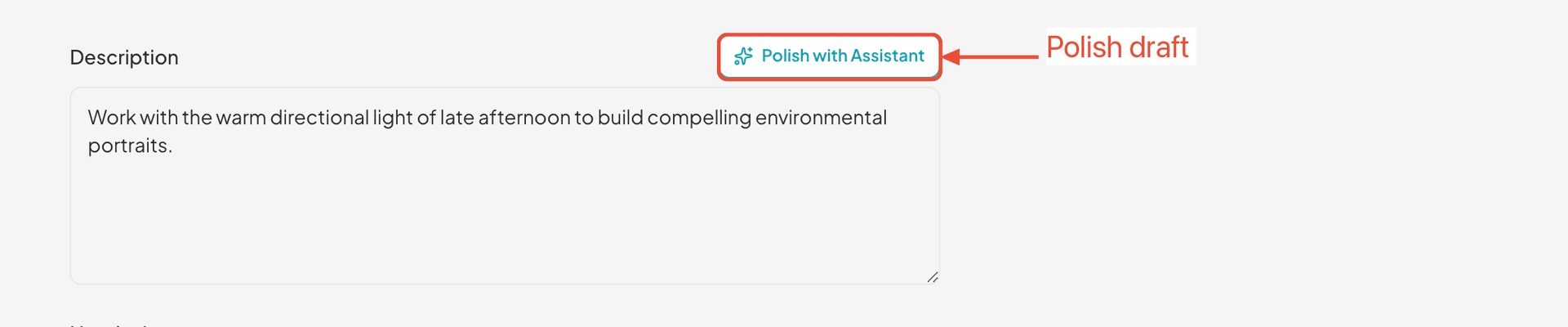
If your draft is rough, hit Polish with Assistant. The Wayfield Assistant cleans up clarity, grammar, and flow while keeping your voice and facts — it never invents details. (This is available on organizations with a Creator plan or higher; if it's not enabled you'll see a note to that effect, and you can simply write the description yourself.)
The rest of the page fills in the details:
- Header image — upload a JPEG, PNG, or WebP to set the banner for your session.
- Location — pick an existing location from the organization's list, or propose a new address if your session meets somewhere new. A proposed address becomes a real location only once the organizer approves.
- Materials — attach any files participants will need. These stay private to you and the organizer until the submission is approved.
- Other logistics — anything else that matters: what to bring, where to meet, parking, and so on.
Use Save Draft at any point to save your progress and come back later — nothing is sent to the organizer until you explicitly submit.
Submitting for approval
When it's ready, click Mark as Complete. Wayfield saves your latest edits and asks you to confirm — once you do, the session is sent to the organizer for review.

Your session flips to Submitted — awaiting review, and the organizer is notified that there's something new to look at. From here the ball is in their court.
Mind the deadline
What locks when you submit
Once you submit, the session locks — you can't keep editing while the organizer reviews it. That keeps the version they're looking at stable, so you two aren't changing it out from under each other. The fields go read-only until they respond.
If the organizer approves, your content is applied to the live session and the page shows it as Approved and live. It stays locked at that point — your work is now what participants see. If you need another change after approval, reach out to your organizer.

If the organizer requests changes
Instead of approving, the organizer might send your session back for a revision. When they do, you're emailed, the session reopens for editing, and their note appears right at the top so you know exactly what to fix.

Make the changes they asked for, then hit Mark as Complete again to resubmit. It goes straight back to the organizer as awaiting review. There's no limit on rounds — but reading their note carefully and addressing it fully is the fastest way to get approved.
What the statuses mean
- Draft — You're still working on it. Nothing has been sent to the organizer, and you can edit freely.
- Submitted — awaiting review — Sent to the organizer and locked while they look it over.
- Needs revision — The organizer sent it back with a note. It's editable again — update it and resubmit.
- Approved and live — Reviewed and applied to the session. Done — this is what participants see.
Common questions
Does "Mark as Complete" publish my session? No — it submits it to the organizer for review. It only goes live once they approve it.
Can I edit after I submit? Not while it's under review — the session locks. It becomes editable again only if the organizer requests a revision. After approval it stays locked, so ask your organizer if a live session needs another update.
What's the minimum I need to submit? A description. Everything else — location, header image, materials, logistics — is optional, though the more you include the less likely a revision request comes back.
Will I know if the organizer sends it back? Yes. A revision request emails you and attaches the organizer's note to the session so you can see exactly what to change.
Ready when you are
Ready to write your session?
Sign in to your leader dashboard to draft, polish, and submit your session content — right in your browser.