
What Workshop Mode is
Workshop Mode isn't a single switch — it's a small kit of iPhone features working together so that, on a workshop day, your phone shows the right thing and stays out of the way: an iOS Focus that filters Wayfield to the workshop you're running, a one-tap day starter, a Lock Screen that shows your next session, and a matching watch face. You set it up once and reach for it on every workshop day. It's an iPhone feature (it builds on iOS Focus modes).
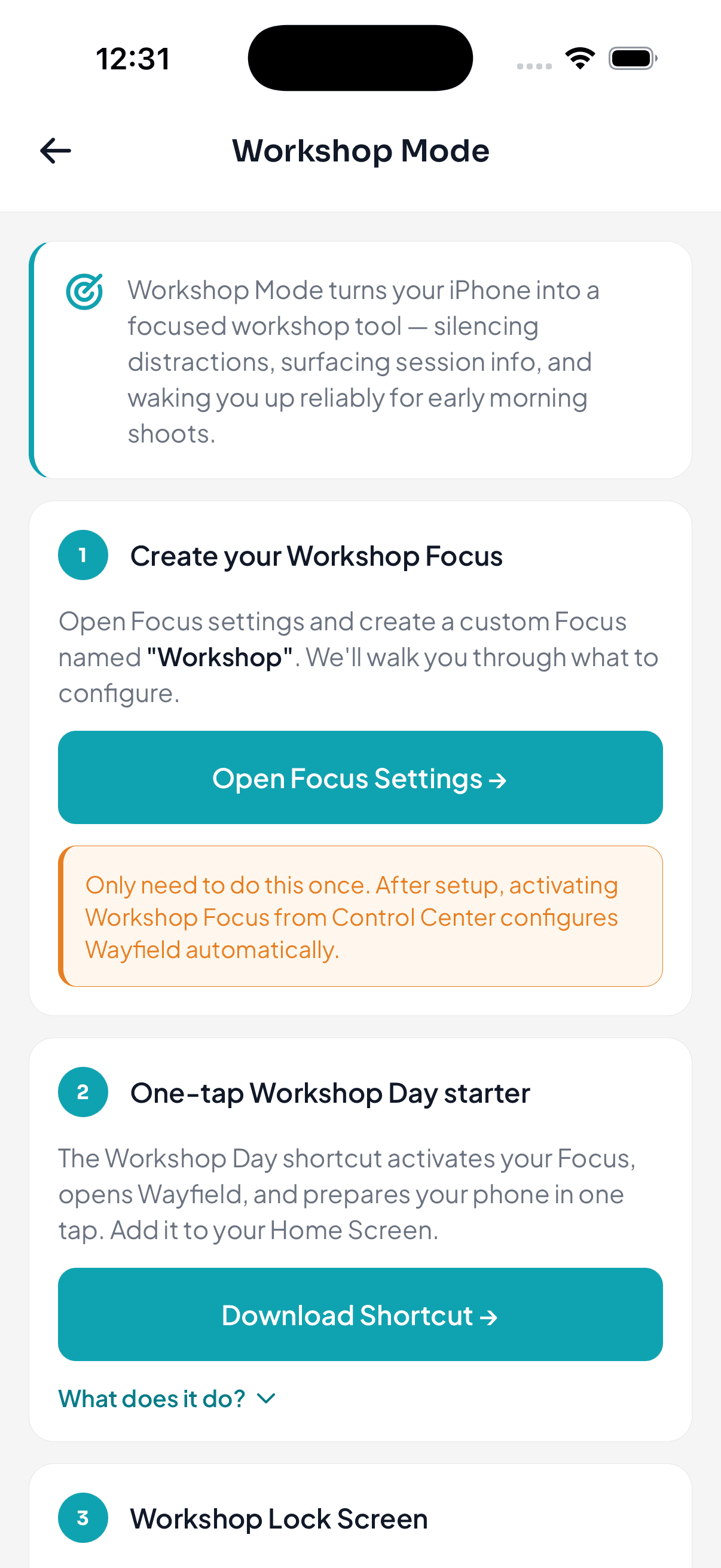
You can set it all up right from the app — the screenshots below are from Profile → Workshop Mode, which holds the one-tap downloads. This guide is the companion.
1. Create your Workshop Focus
The heart of Workshop Mode is a custom iOS Focus named Workshop. Set it up in Settings → Focus:
- Go to Settings → Focus → + → Custom.
- Name it “Workshop” and pick an icon (a compass or camera fits).
- Under Allowed Apps, allow Wayfield, Camera, Maps, Clock, Weather, Phone.
- For Notifications, choose Allow only Time Sensitive.
- Optionally link it to a dedicated Home Screen, then tap Done.
Then connect the Focus to the workshop you're running:
- Open your new Workshop Focus → App Filters → Add Filter → Wayfield.
- Select the workshop you're preparing for, then tap Add.
You only do this once. After that, turning on the Workshop Focus from Control Center configures Wayfield automatically — the app, your widgets, and your watch all narrow to that one workshop. (This is the same Workshop Mode you can also trigger with Siri.)
2. One-tap day starter
The Workshop Day shortcut does the whole morning routine in one tap: it turns on your Workshop Focus, opens Wayfield to today's sessions, sets screen brightness to full, and can optionally start a playlist. Download it from the in-app Workshop Mode screen and add it to your Home Screen so it's ready before you leave.
3. Workshop Lock Screen
A Wayfield Lock Screen shows your next session every time you glance at the time — without unlocking. To add it:
- Touch and hold your Lock Screen, then tap Customize → Lock Screen.
- Tap the widget area below the clock, then + and search Wayfield.
- Add the Circular (top) and Rectangular (below the clock) widgets.
- Tap Done, then select your new Lock Screen and link it to your Workshop Focus.
See Add the iPhone widget for more on the widget itself.
4. Workshop watch face
If you wear an Apple Watch, a Wayfield watch face fills every complication slot with workshop data — your next session, check-in status, and conditions. Install the Field or Studio edition face from the in-app Workshop Mode screen, then pair it with the Apple Watch app.
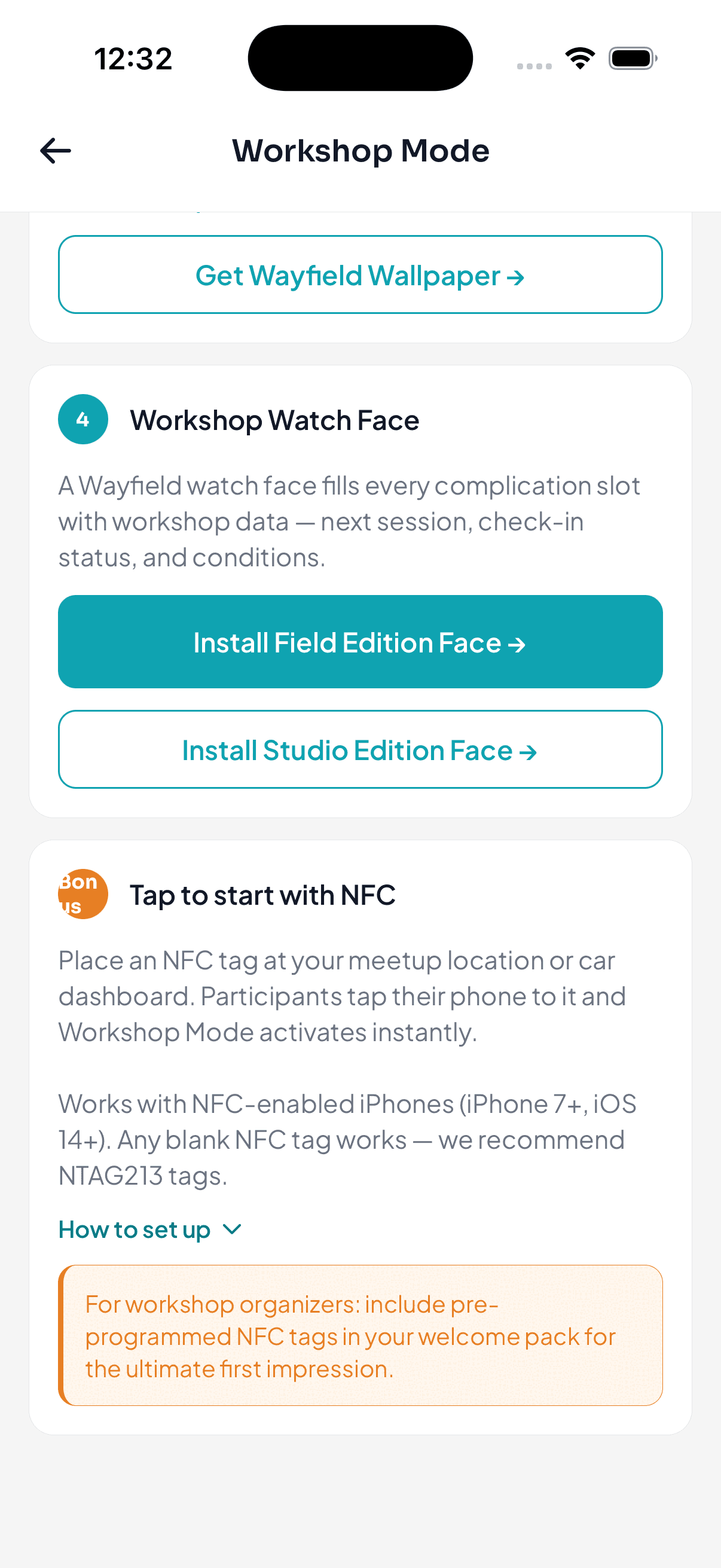
Bonus: tap to start with NFC
Place an NFC tag at your meetup spot or on your car dashboard. Participants tap their phone to it and Workshop Mode activates instantly. It works on NFC-enabled iPhones (iPhone 7 and later, iOS 14+), with any blank tag — we recommend NTAG213 tags.
Where to set it up
Everything above lives in one place in the app: open Profile → Workshop Mode. It walks you through each step and holds the one-tap downloads (the day-starter shortcut, the Wayfield wallpaper, and the watch faces). This guide is the companion — set the Focus up once, and workshop days get a lot quieter.
Ready when you are
Get the Wayfield app
Everything participants and leaders need, on iOS and Android.